Introduction
There are two ways to authenticate: For this guide, we will be using the API keys flow and assume you have a Pleo account. Read more details about each flow in our Authentication guide.1. Get your API key
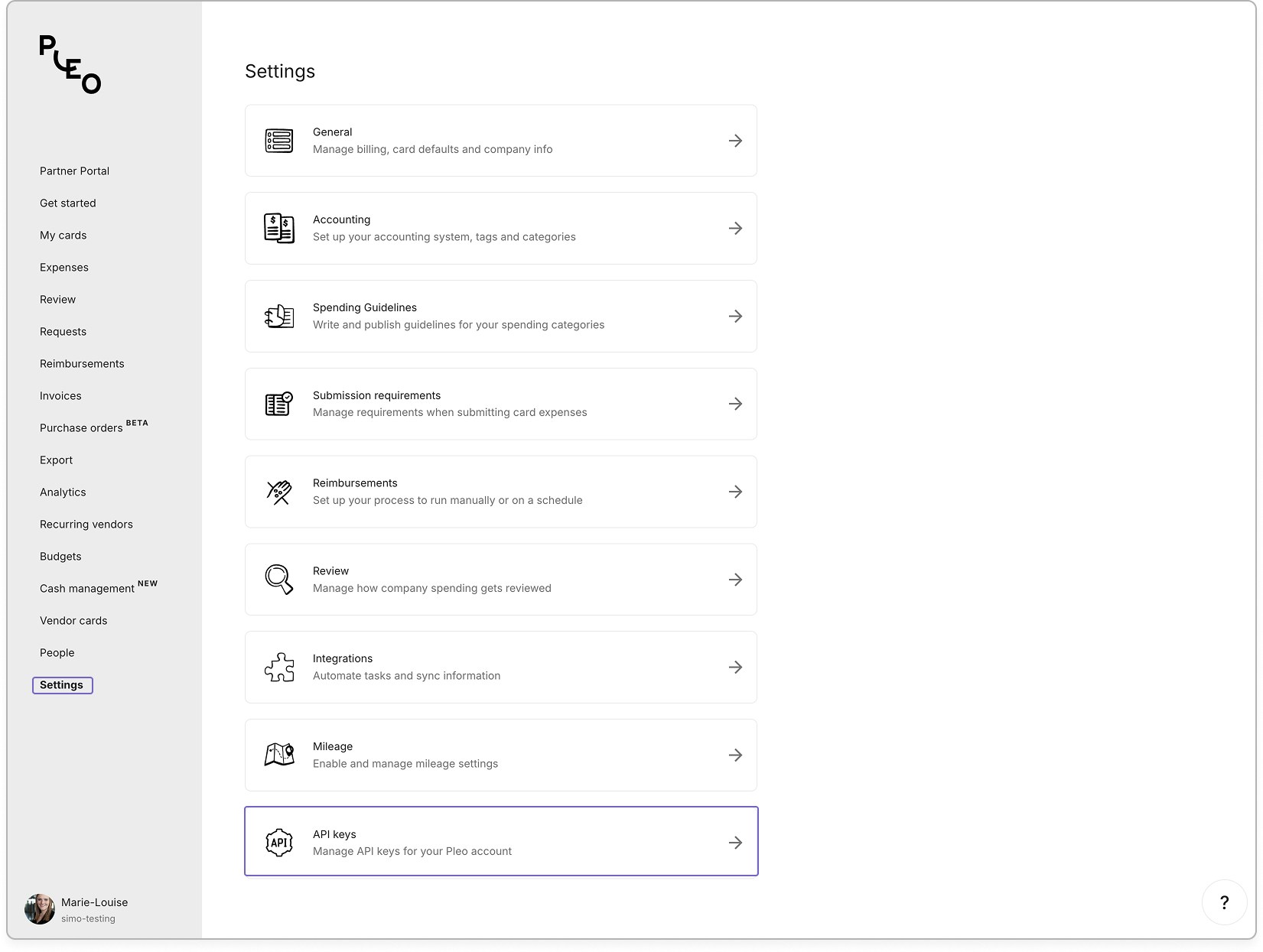
- Head to your Pleo account > Settings > Scroll down and click on API keys
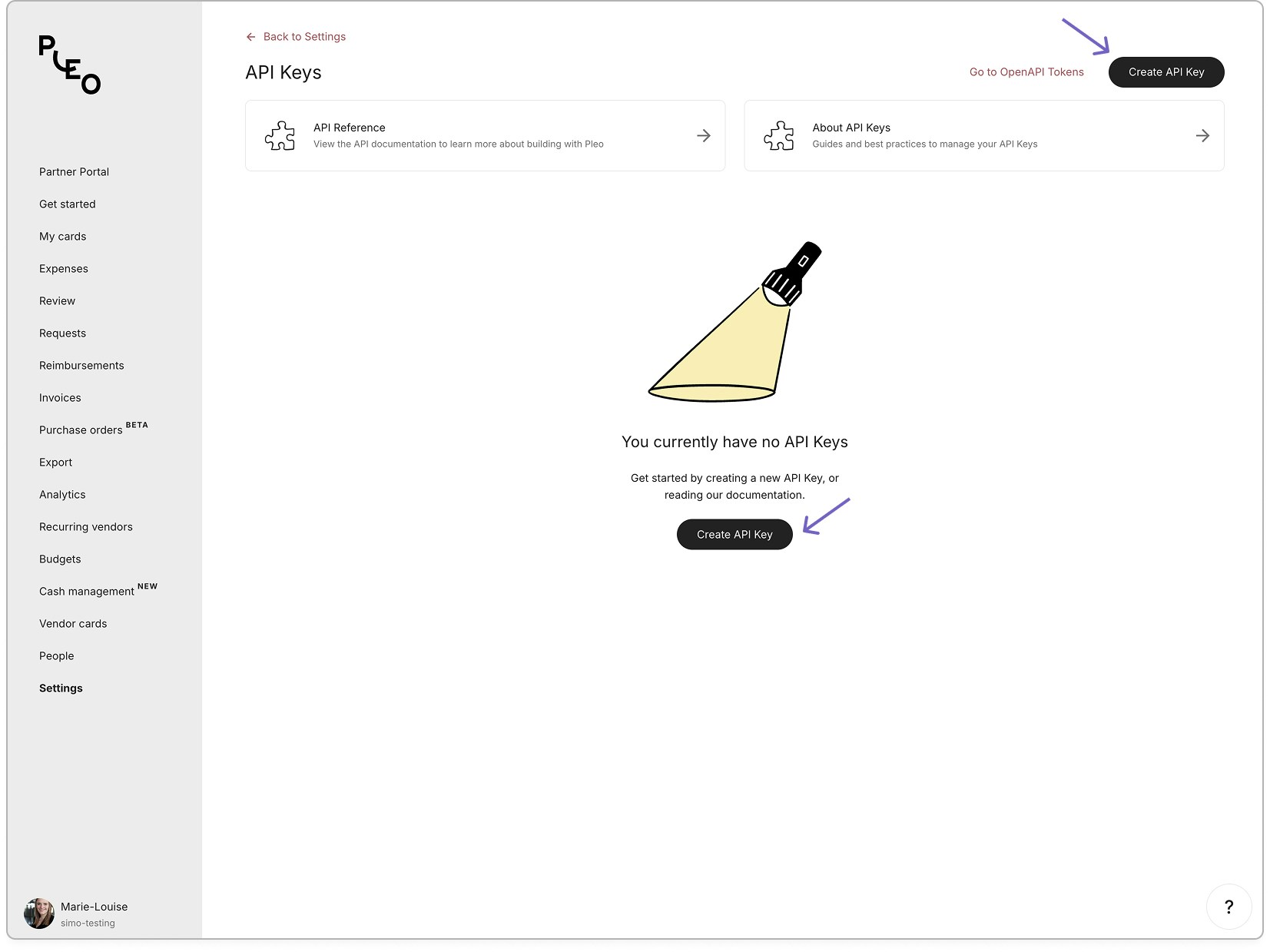
- Click on Create API key
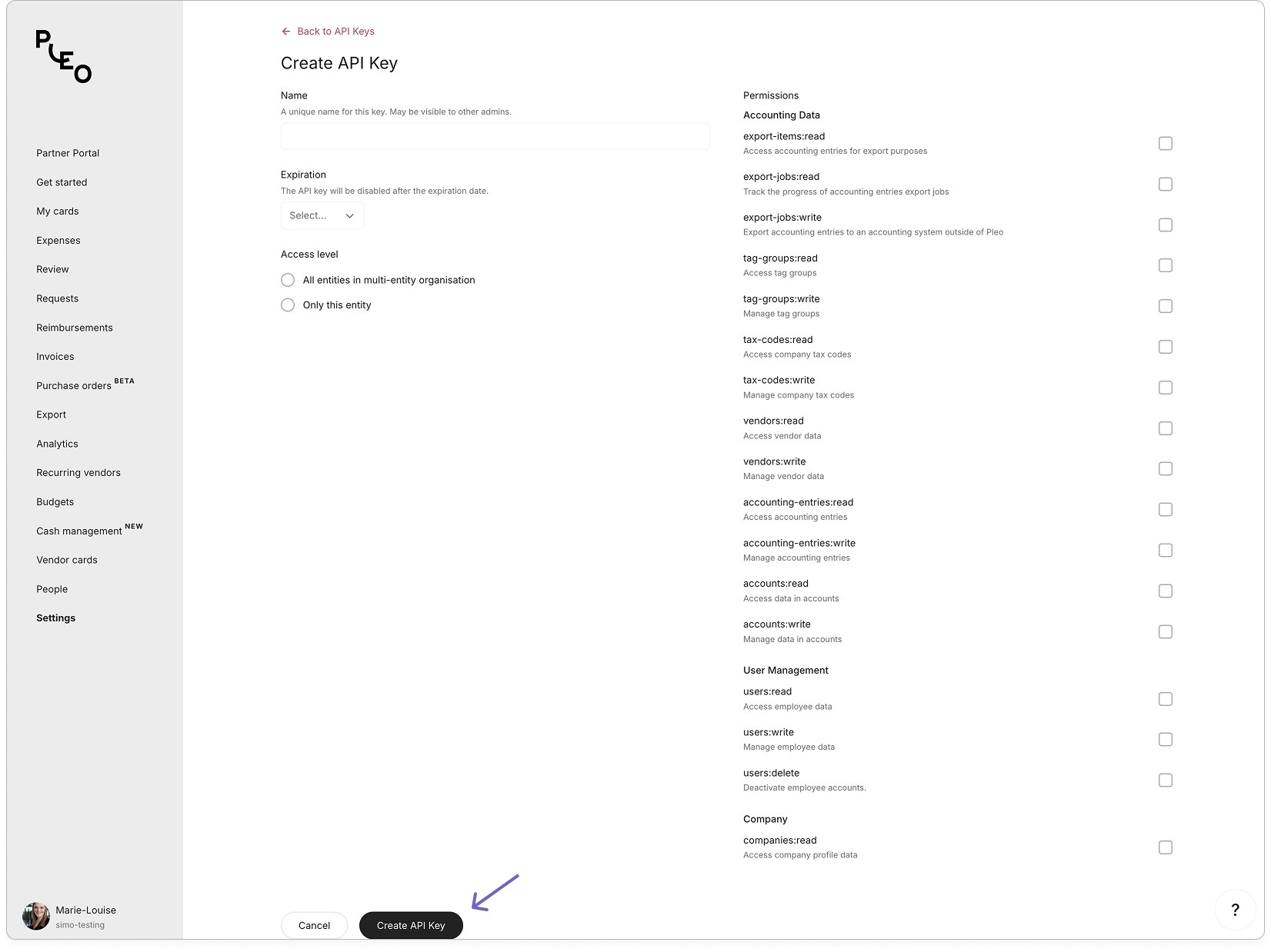
- Add the following details
- Name: give your key a name that will help you remember what it’s for, like
Pleo API Quickstart - Expiration date: choose when you want the key to expire
- Access level: decide if the key is for a specific entity (company) or for multiple entities of a business (organisation). Read about the differences here.
- Permissions: select the scopes you need. Your selections will automatically enable the right permissions in your key.
- Click on Create API Key
- Store your key securely as you will only be able to see it once
2. Make your first API call
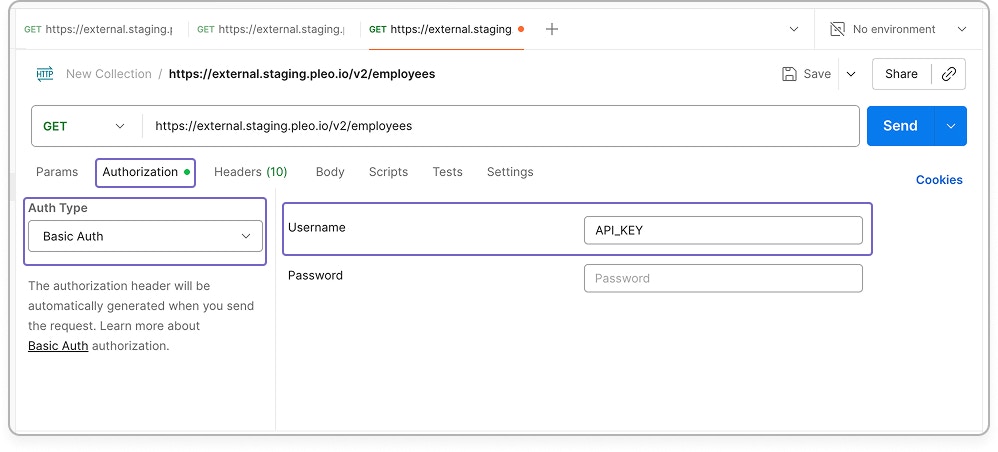
Time to put your new key to use! When authenticating with API keys, include the key in theAuthorization header of the request, using the Basic schema. The key should be used as the username, and an empty string should be used as the password.
We’ll use the Get Search for employees query for this example.
curl
With curl, specify the -u / --user flag, followed by the API key. The password is an empty string.